For this course we need a mechanism that allow us to achieve the following goals:
We will be using CVS (Concurrent Versions System) to achieve the above goals. CVS is an utility used to keep track of the history of files that you (and possibly other people) are utilizing. CVS is already part of the Eclipse and it can be accessed by changing to the CVS Perspective.
In CVS a repository is a location where files are stored. For this course, we have set up a repository for each student from where all files associated with a homework will reside. It is this CVS-managed repository that allow us to achieve the goals described above. When files associated with a homework are distributed in the course, they are distributed by placing copies of the files in each student's repository. Students can then retrieve these files by completing a process called "check out." Students can work on their code and save the files in the repository by completing a process called "submit." The repository of each student resides in a computer system we call the linuxlab which will be access via a network connection. That means that if you work at home and save your files in the repository then you will have access to those files from a computer at school.
In order to have access to your repository you need to set up a repository in Eclipse. This is a process you only need to do once. After this process have been completed you will be able to manage all the homeworks in the repository.
In order to set up a repository you need an account in the computer system where your repository resides. Notice this account we are referring to is not the WAM account we have provided in class. Contact your instructor for further information regarding your repository account.
Changing to the CVS Perspective
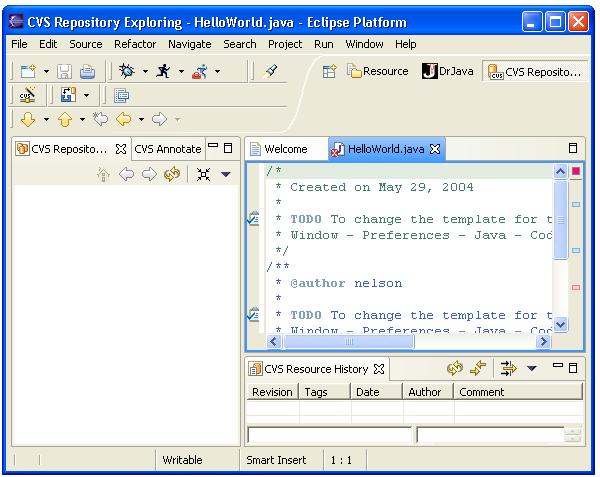
Once you have your repository account proceed to change to the CVS Perspective by selecting in Eclipse Window->Open Perspective->Other->CVS Repository Exploring. You will see the following window:
Creating a New Repository Location in Eclipse
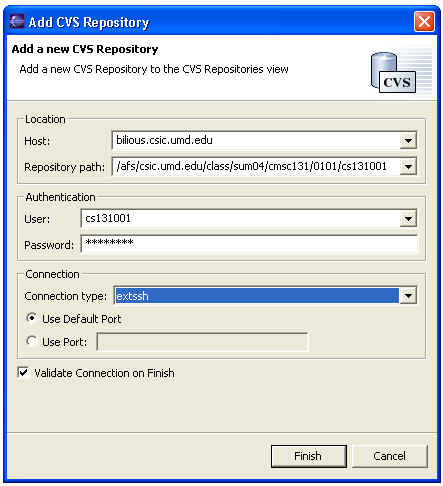
In order to "connect" to your repository you need to create a new repository location by right clicking on the empty pane and then selecting "New"->"Repository Location...". The empty pane is the one to the left of the pane with code. Once you have completed your selection a dialog will come up that will let you define a new CVS repository. Follow the following steps to complete the set up process:
Accessing the Repository Contents
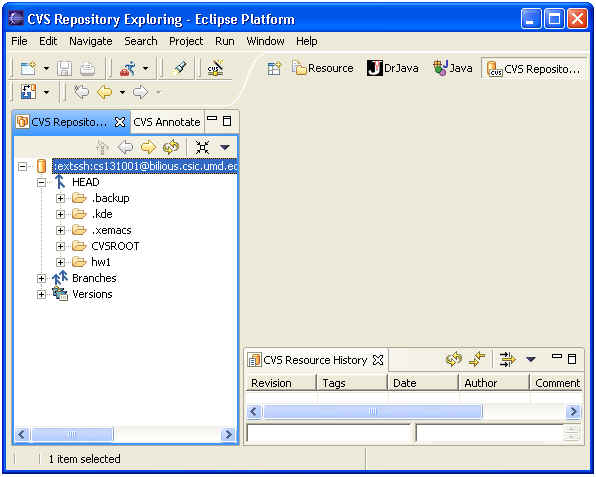
It will show "Pending..." as it loads data from the repository. Then it
will show two folders where one of them is called CVSROOT. The
following is an example of how your screen should look like:
If you want to transfer all the files associated with a homework then: