| Homework #6 |
CMSC 131 |
| Due Friday July 23rd,
2004 |
Object-Oriented Programming I |
| Type of Homework: Closed |
Summer
2004 |
Objective
This homework will give you practice with one-dimensional arrays of
references, class design, and class implementation.
Overview
Management of computer accounts is one of the the tasks computer system
administrators are responsible for. Typical activities include: account creation/removal, quota increase, and information reports. In this homework you will implement a
simplified version of an account manager.
For this homework, support classes will not be provided. The only files available in the code distribution are a
Driver.java file which just starts the system you will implement, and a timelog
file. You will design and implement all the classes of the system.
This homework will be graded as follows:
- 80% - Implementation
- 10% - Javadoc documentation
- 10% - Time log
Specifications
Terms
Before we continue, let's define some terms we will be using throughout the
description.
- User Name - Refers to the person a computer account has been assigned
to. It may include first name, last name, and middle initial.
For simplicity we will assume names are unique (i.e., two people will not
have the same name).
- Login Name - Refers to the collection of characters that identifies an
account. For example, my WAM account has has login name "nelsonp".
Login names will be unique (i.e., no two accounts will have the same login
name).
- Quota - Fraction of the disk space that belongs to an account.
- Disk Space - Amount of disk space a computer has.
- Disk Usage - Amount of disk space being used for accounts.
We will use megabytes (MB) as the disk space
unit.
Tasks
You will write a program that enables a system administrator complete the
following tasks:
- Create a computer account for a user.
- Remove (delete) a computer account.
- Increase the quota of an account.
- Display information about an account.
- Display information about all accounts in the system.
For simplicity our system only have one computer. When the program starts, it prompts the system administrator for the name of the
computer and the maximum disk space. Afterwards the program will process
the aforementioned tasks until the "quit" option is chosen. The
"Sample Run" section provides a sample run of the program you are
expected to write.
Your Assignment
You assignment consists in implementing three classes that will represent the
accounts management system. The classes are:
- Account - represents a computer account. It has (at least) the
String reference fields userName, loginName, and password. In addition,
it has a double field name quota.
- Computer - represents a computer. It has the following fields:
- name - String reference representing the name of the computer.
- maxDiskCapacity - double field representing the maximum disk capacity
of the computer.
- diskUsage - double field representing the disk usage.
- accounts - one-dimensional array of references to Account
objects.
- AccountsManager - represents the manager of the system and where execution
will start.
You can other fields (instance variables) if you understand they are
necessary.
Methods to Implement
The description below provides an idea of some of the methods
each of the classes must have. By no means the list is complete. It
is your responsibility to define any necessary methods so that you can implement
the account management system.
- Account
- constructor - This method takes as parameters a user
name, a login name, a password and a quota value. It initializes
the object fields accordingly.
- toString - This method generates a String with the
following format:
"UserName: <userName>, LoginName: <loginName>,
Password: <password>, Quota: <quota>"
where <userName>,<loginName>,<password> and
<quota> represent the field values associated with the account.
See the Sample output to get an idea of the format to follow.
- get/set methods - Any get/set methods you understand
are necessary.
- AccountsManager
- runManager - You must implement this method.
This is the method that starts the computer account manager. Through
this method you will display the set of computer account management
choices and process user requests. This is the method called by
the driver we have provided. In this method, you will create
a Computer object that will be used to process computer account tasks.
- other methods - Feel free to add any other method you
understand are necessary.
- Computer
- constructor - Initializes a computer with a particular
name and maximum disk capacity.
- createAccount - This method will create a computer
account and it will place it in the array of computer accounts. The
accounts must be placed in the array so that the accounts are sorted in
increasing ordered by
login name. This is a very important requirement you must satisfy.
Creating an account will be possible if there is enough disk space
to satisfy the quota requirements for the account and if the
requested login name is not already in use. Otherwise the creation
of the account will fail. The computer diskUsage should be
adjusted accordingly.
- removeAccount - This method will remove a computer
account. The method requires the login name of the account to
remove. The operation will be successful if there is an account
that corresponds to that login name. The diskUsage of the computer
should be adjusted accordingly.
- increaseQuota - This method will increase the quota of
an existing account by a particular value. For example, if the
account has a quota of 5 MB, then we can increase the quota to 6 MB by
calling the method with a value of 1 MB. The method takes as
parameters the account login name and the quota increase value.
- toString - This method generates a String with the
following format:
"Computer Name: "<computerName>
"DiskUsage: " <diskUsage>
"MaxDiskCapacity: "<maxDiskCapacity>
"Accounts:"
<listOfAccounts>
where <computerName>, <diskUsage>, <maxDiskCapacity> and <listOfAccounts>
represent the field
values associated with the computer.
You should implement the
classes in the following order: Account, Computer and finally AccountsManager.
Error Conditions
Each task have a set of possible errors that could occur. Your program is
expected to detect and in some cases report the errors. The description
that follows specifies the errors you are expected to report. Error
messages should be generated using JOptionPane.showMessageDialog. After
printing the error message, the current task will end and the task menu should
be displayed to process the next user request.
- create account task -
- User is trying to create an account with a login name already is
used. Your program must display the message "ERROR: Login
already in use".
- User is trying to create an account with a quota value that exceeds
the available disk space. For this error your program must display
the message "ERROR: Not enough disk space".
- If the user has provided both an invalid login name and an invalid
quota amount display only the error associated with invalid login
name.
- remove account task -
- User is trying to remove an account with an invalid login name.
Your program must display the message ""ERROR: Account does
not exist".
- increase quota task
- User is trying to increase quota by an invalid value. Your
program must display the message "ERROR: Not enough disk
space."
You can assume that for other tasks and scenarios not covered by the above
error conditions the user is providing the expected data and in the correct
format.
Requirements
- You must use meaningful variable names and good indentation.
- You may not use the ArrayList class.
- Your arrays must have the minimum size possible at all times.
- You must avoid code duplication.
- You must implement and use the classes Account, Computer,
and AccountManager.
- Computer accounts must be kept ordered by login name.
- The Computer class must declare and use an array of references to
Account objects.
- You must provide javadoc comments for class methods.
- You can define additional classes if you understand is necessary.
Sample Run
Keep in mind this is just an sample run. Your code must
work for other scenarios.
Starting the system and providing a computer name

After pressing OK and entering disk capacity
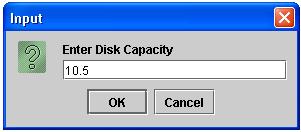
After pressing OK and entering 1

After pressing OK and entering account info

After pressing OK

After pressing OK and entering 1

After pressing OK and entering account information

After pressing OK

After pressing OK and entering 5

After pressing OK

After pressing OK and entering 2

After pressing OK and entering tom
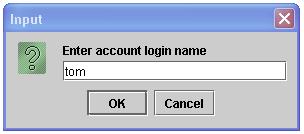
After pressing OK

After pressing OK and entering 4

After pressing OK and entering rosita

After pressing OK

After pressing OK and entering 3

After pressing OK and entering data

After pressing OK

After pressing OK and entering 0

After pressing OK the program ends
Submission
Submit your project using the submit project option associated with Eclipse.
Remember to complete your time log before submitting your homework.
Web Accessibility