
Create a new data file
Creating a new Treemap 3 file with a spreadsheet program:
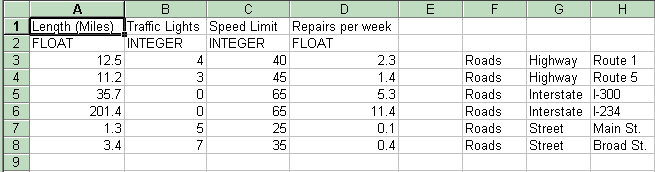
On the first row of the spreadsheet, put all of the labels of the attributes for your data, one label per cell. For example, to create a data file on traffic information you would put "Length (miles)" in the first cell, "Traffic Lights" in the next cell, "Speed Limit" in the third cell and "Repairs per week" in the fourth cell.
In the next row you put the type of each data attribute. Data can be of type FLOAT, INTEGER, or STRING. In the traffic example, one would have "FLOAT" in the first cell of the second row, "INTEGER" in the second cell, "INTEGER" in the third, and "FLOAT" in the fourth.
Fill in the values for each attribute for an item, one item per row. After the attribute values include one blank cell. After the blank cell, list the hierarchy path starting with the name of the root. For example, "Roads" would be in the first cell after the blank cell, "Highway" would be in the second, and "Route 1" in the third or last cell. (Note that the leaves of the tree do not need to all be at the same dpeth.)
Now save the file as a tab-delimited text file. For example traffic.txt. Rename the data so the extension is .tm3 instead of .txt. The file is now ready to be loaded by Treemaps.

Common Problems:
If your newly created Treemap file does not load correctly it could be caused by one of the following problems.
- Make sure you have no empty values in your attribute data table.
- Excel sometimes adds extra white space if you move your cursor to
areas outside your data, or replace cells that once had information with white
space when deleted. This causes a probelm with Treemap 3. To remedy this,
open your file in excel. Select all of your data, but only your data. DO NOT SELECT ANY OUTSIDE BLANK CELLS. Select the copy command. Then open a new
spreadsheet and paste the information you had selected. Now without changing
or exploring the data save the file as a tab delimited text file and the white
space should be gone.
- Make sure that intergers are really integers.