|
CMSC 106 |
Project #1 |
Fall 2001 |
Due date: 11:00 pm on Monday, September 24, 2001.
In this project you are to write a C program which will declare variables,
read values into and write the values stored in those variables, and perform
various calculations and assignments using them. You will also have the
opportunity to become familiar with the system facilities to be used for
developing projects in this course: several basic UNIX commands, the text
editor, the C compiler, and the ``submit'' program used for electronic
project submissions.
Imagine that you are developing a system to help a weather station process
weather observations (temperature, wind, air pressure, and humidity).
The purpose of the program is to help convert data from one set of units to
another, to calculate the wind speed from the motion of a weather balloon,
and to express humidity data in different forms.
In order to be able to handle data collected in
different formats, you must be able to convert from various units of measure to other
units. Your program will prompt the user to enter values in certain units and then
print out both the original values and the values in the other units.
You will be required to write a C program to do the conversions
explained in this section. As you read this section, you may also
want to refer to the ``Sample output'' section below.
Your program is to first print certain introductory information and read
certain required input values from the user. It will then print 4 separate
sections of output giving the calculated values.
Your program must first print a welcome message:
Welcome to ``Weather Wizard'' Unit Converter!
``Weather Wizard'' must be printed in double quotes as shown above.
The program must then request a set of temperature and air pressure values
in English units (degrees Fahrenheit and inches of mercury).
There must be a blank line between any two requests for values.
This section should be preceded by the message:
Please enter values in `ENGLISH' units:
The word ``ENGLISH'' must be printed in single quotes as shown above.
Following this message, the program must prompt the user on a separate line to enter a temperature
in degrees Fahrenheit. This prompt must contain the exact words ``temperature'' and
``Fahrenheit''.
The program must then read in a single temperature value.
This number will be an integer.
Following a blank line, the program must prompt the user to enter a pressure in inches.
This prompt must contain the exact words ``pressure'' and ``inches''.
The program must then read in a single pressure value.
This number will be a positive value, possibly with a fractional part.
The program must then request a set of temperature and air pressure
values in metric units (degrees Celsius and millibars). There must be
a blank line between any two requests for values. This section should
be preceded by the message: Please enter values in `METRIC' units: The
word ``METRIC'' must be printed in single quotes as shown above.
Following this message, the program must prompt the user on a separate
line to enter a temperature in degrees Celsius. This prompt must
contain the exact words ``temperature'' and ``Celsius''. The program
must then read in a single temperature value. This number will be an
integer. Following a blank line, the program
must prompt the user to enter a pressure in millibars. This prompt
must contain the exact words ``pressure'' and ``millibars''. The program
must then read in a single pressure value. This number will be a
positive value, possibly with a fractional part.
Following a blank line, the program must then print a header message for the wind calculator.
This message must contain the exact words ``Wind'' and ``Calculator''.
On the next line, the program is to print a prompt for the user to enter the number of miles
and feet traveled by the weather balloon.
The program must then read in a value for the miles and a value for the feet traveled.
These numbers will be non-negative integers.
On the next line, the program is to print a prompt for the user to enter the amount of time
the balloon has been traveling, in minutes and seconds.
The program must then read in a value for the minutes and a value for the seconds of time.
These numbers will be non-negative integers.
Following a blank line, the program must then print a header message for the humidity calculator.
This message must contain the exact words ``Humidity'' and ``Calculator''.
On the next line, the program is to print a prompt for the user to enter the
Fahrenheit air temperature and
dew point temperature.
The program must then read in 2 values representing the appropriate temperatures.
These numbers will be integers.
Your program may assume, without checking, that the user will enter the proper number
of values which will be of the types described above and whose
values will always be within the ranges indicated.
After the input values are read, your program is to print 10
asterisks ( ) preceded and followed by blank lines, followed
by its first section of output. The first line of this
output section must contain the phrase ``English to metric
conversion''. The next line of output must contain the Fahrenheit
temperature value read in, followed by the equivalent temperature in
Celsius. Both temperature values must be printed on the same line,
and each value must be labeled in the appropriate units. The
temperature values should be printed rounded to the nearest whole
degree. On the next line, the program must print the air pressure
value read in, followed by the equivalent value in millibars. Both
pressure values must be printed on the same line, and each value must
be labeled in the appropriate units. The value in inches must be
printed with an accuracy of 2 decimal places, and the value in
millibars must be printed rounded to the nearest whole millibar.
) preceded and followed by blank lines, followed
by its first section of output. The first line of this
output section must contain the phrase ``English to metric
conversion''. The next line of output must contain the Fahrenheit
temperature value read in, followed by the equivalent temperature in
Celsius. Both temperature values must be printed on the same line,
and each value must be labeled in the appropriate units. The
temperature values should be printed rounded to the nearest whole
degree. On the next line, the program must print the air pressure
value read in, followed by the equivalent value in millibars. Both
pressure values must be printed on the same line, and each value must
be labeled in the appropriate units. The value in inches must be
printed with an accuracy of 2 decimal places, and the value in
millibars must be printed rounded to the nearest whole millibar.
After the first output section is printed, your program is to print a blank line followed by
its second section of output. The first line of this output section must contain the phrase
``Metric to English conversion''.
The output for this section will follow the same pattern as the first section above, except the
metric units read in will be followed by their equivalent English units. The values must be printed
with the same accuracy and the same labeling as described for the first output section above.
After the second output section is printed, your program is to print a blank line followed by
its third section of output. The first line of this output section must contain the phrase
``Wind calculator results''.
On the next line, the program must print the wind speed in feet per second, miles per hour, and knots.
The three values are to be labeled ``feet/sec'', ``mph'', and ``kt'' respectively.
The value in feet/sec must be printed with an accuracy of 2 decimal places, and the values for mph and
kt are to be printed rounded to the nearest whole unit.
After the third output section is printed, your program is to print a blank line followed by
its fourth section of output. The first line of this output section must contain the phrase
``Humidity calculator results''.
On the next line, the program must print the air temperature, the dew point temperature, and the relative
humidity in that order. The temperature values must be printed in units of whole degrees Fahrenheit, and
the relative humidity must be printed rounded to the nearest whole percent. The temperatures must be
labeled ``degrees F'' and the humidity must be labeled ``%''.
Here are the conversion factors and formulas the program must use. Note that you MUST use these
EXACT conversion factors and formulas, even though you may know of more accurate values.
You MUST also use preprocessor macros (symbolic constants) to define any
conversion factors or
special constants used in the program.
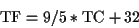
Temperature conversion:
where TC is temperature in degrees Celsius and TF is temperature in degrees Fahrenheit
- Air pressure conversion:
1 inch of mercury = 33.86389 millibars
1 millibar = 0.02953 inches of mercury
- Wind conversion:
1 mile = 5280 feet
1 knot = 1.15 miles per hour
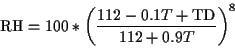
- Humidity conversion:
Dew point temperature and relative humidity are actually related by a
complicated calculation involving the portion of air pressure due to
the water vapor content of the air, but a good approximation for
normal ranges of air temperature is:
where T is equal to the air temperature in degrees Celsius
and TD is equal
to the dew point temperature in degrees Celsius (NOTE the units of
temperature are degrees CELSIUS!)
In this project, you should use float variables (or expressions)
for quantities which may have a fractional part, and int variables
for whole number quantities. Chapters 2-4 of your text don't discuss how
expressions which contain both int and float values are evaluated
(this is covered in detail in a later chapter). In order to avoid any
problems with your calculations, you should realize now that expressions
with both int and float values will have a float value
when computed.
When writing the expressions for the conversions, be aware that doing the
statements in a different order can cause you to get a different answer.
For example (52/5200) * 100.0 = 0.0 but (52*100.0)/5200 = 1.0. This is because
the 52/5200 is calculated as an integer value since both operands
are integer. The answer is actually 0.01, but because it is forced into
an integer storage location, only the 0 is stored. Then when it is multiplied by 100.0,
the answer is 0.0 because any float times 0 is 0.0. When the second expression
is evaluated, the 52 * 100.0 makes it 5200.0 (a floating point number), and
then when the division happens, the answer is 1 because there was no truncation
of the fractional part.
If you have two integers and you want to make sure the result is stored in
a float, one easy way is to multiply one of the operands by 1.0 before
the other operation is done.
All your C programs in this course should be written in ANSI C, which
means they must compile and run correctly with ``cc -std1 -trapuv'' on the OIT
UNIX Class Cluster. Even if you already know what they are, you may not use
any C language features other than those introduced in Chapters 1 through
4 of your textbook, plus those presented in lecture while these chapters
were covered. Note that as a result conditional statements or loops
of any type may
not be used. Using C features not in these chapters will result in
losing credit.
Your program must have a comment near the top which contains your name,
login ID, student ID, your section number, your TA's name, and an original
description of the action and operation of the program. Do
not put your alias in this comment! Your program should be
written using good programming style and formatting, as discussed in class
and throughout your textbook. For this project, style is considered to
consist of:
- adequate descriptive comments throughout (in addition to the
comment mentioned above), to describe what your program is doing
and how
- neat and proper indentation and formatting
- writing clear and readable code
- use of meaningful descriptive variable names
- use of symbolic constants where appropriate
- avoiding disallowed C language features as discussed above
You may want to skip this section at first, read the rest of the project,
and come back to study it carefully when you are about to begin writing your
program.
A crucial part of the material to be learned in this course is how to
properly develop programs and find the inevitable errors you will make while
writing them. This section addresses how to do that. It is not up to the
instructional staff to find every error in your program; you need to learn
how to find and fix most of them for yourself. If you have tried the
techniques below and have still not been able to find or correct a problem,
bring a printout of your program (plus printouts of any compiler errors or
execution results) to our office hours and we will be able to help you.
Many people like to write their whole program, or at least have a good
outline and idea of what it will look like, before sitting down to type any
of it in. That's fine, but it is absolutely essential that you never
type in more than a short part of your program without stopping to test what
you have so far. You should stop and compile your program, run it on sample
input, and verify that it works correctly so far before going on to enter
the rest of the program! Of course, as each intermediate stage the part of
the program you have entered will obviously not solve the whole problem, and
it must at least be a complete and valid C program, but you will find that
testing your project at each stage of development will insure you can find
and fix any errors more quickly and easily.
For instance, even with a relatively short program like this one you
might enter or implement it in steps as follows:
- First type in just the part of your program which prints the first
two lines, and reads the input values typed in by the user (i.e.,
the ``Identification and input'' section described above)
You will need definitions of symbolic constants for conversion values given
and declarations of variables into which the values are to be read. Add debug
printf statements to print the values which were read, to
make sure these values were read and stored correctly. If not,
correct your program before going on!
- Next figure out the formulas necessary and add statements to print
the first output section). Compile
your program and make sure it produces correct results for the
part you have entered so far before going on.
- Then add the code for the other sections of output.
- Lastly, make sure all of the output exactly matches what is specified
in the project description. (Placement of words, punctuation,
and line breaks should all be double checked.)
In fact, you may want to break each of these steps up into smaller steps-
to add statements to print only part of each output section at a time.
Many programs can be developed with equal ease in different orders. The
specific steps followed are not important; what is crucial is that you stop
and compile and test your program after each one.
- Usually the compiler tells you exactly which line in your program
is incorrect. If you can't figure out what's wrong by looking at
that line, you'll just have to use your textbook or class notes and
compare a correct example of that type of statement with what you
wrote.
- Sometimes the compiler can't always recognize a syntax error
immediately (such as when you've forgotten the semicolon which
must terminate every C statement), and doesn't notice it until the
next line or statement. If the statement the compiler identifies
as wrong looks correct to you, try examining the one before it for
any errors.
- If you see the error ``Invalid statement'' and the compiler
identifies the very last line in your program, it usually means
you have mismatched braces (
{ }). Make sure that
there is a closing brace to match the main function's
opening brace. Indenting statements between braces in a readable
manner will assist in this task.
- Here are a couple of unusual compilation errors produced by the cc
compiler on the OIT UNIX class cluster and what they mean:
- ld: Unresolved print
(or scan, or Printf) This means you have
misspelled the name of one of the standard library functions
(printf as print or Print, scanf
as scan, etc.). Every program component must be
spelled exactly, and even one incorrect character will cause
your program to fail to compile. Check every call to these
library functions carefully.
- An unexpected newline character is present in a string literal
You probably forgot either the opening or closing double-quote
mark in one of your printf or scanf argument
strings.
- Object file format error... bad file magic number
The cc C compiler requires that a source file's name end in
``.c''. That's a lowercase ``c'', as in a filename like
``proj1.c''. If your program's filename isn't in that
format you must rename it.
It is inevitable that many, if not most or all, of your programs will fail
to work correctly as initially written. A few simple strategies can help:
- Carefully trace your program through on paper assuming certain
input values, and keep track of the current values of all of the
variables.
- You may need to add debug
printf statements to your program
to print out the values of variables and calculations.
Essentially, this lets the computer trace your program for you.
If the printf statements show that your variables or
expressions don't contain or produce the values you think they do
then that's a clue to what's wrong. Using debug printf
statements you can narrow the problem down and determine which
variables or expressions don't have the proper values, and then
look at those more closely.
- If, when you run your program, you get the error ``Floating
exception (core dumped)'', this means your program has an
unrecoverable execution error. This most likely means you are
either trying to calculate some expression containing a division
and the denominator's current value is zero, or you are trying to
perform some calculation with a
float variable which has
never been given a initial value and contains a garbage value. To
check for the first case, add debug printf statements
before every division printing the value of the denominator. To
check for the second one, check carefully that all your
float variables have initial values or that values are
assigned to them or read into them before they are used in
calculations.
- Another fatal execution error is ``Segmentation fault (core
dumped)''. In a program like this one, this message usually is
caused by a few mistakes related to the differences between
printf and scanf. See your lecture notes where this
was discussed, or look at your textbook on pages 39-40.
- If your program just hangs and doesn't do anything after you type
values to be read into certain variables and you've pressed the
enter key, you are likely to be making another error in confusing
printf with scanf. See your class notes, or
carefully reread pages 39-40.
- Note: If you get either of these ``core dumped'' errors. You most likely
now have a file named ``core'' in the current directory. Core is the
central part of memory, and to dump the core means that it gave you a file
containing what core looked like at the time the program died. This is most
likely a very large file and most likely something you don't want to read
so it is good to delete it to get it out of the way.
- If, after you have tried these techniques you still can't figure
out why your program doesn't work, bring printouts of your source
code and any compiler errors or output produced to our office
hours, and we can teach you how to track the problem down.
Readable code is important in the real world because most of the programmer's time
is spent rewriting or modifying code that already exists - not writing code from scratch.
To make your code readable, be sure to use descriptive variable names (English words or
their abbreviations), indentiing (so that you can tell what statements are dependant on others),
vertical whitespace (blank lines between sections) and comments for the person reading the
code. Even though in this class you will not be rewriting someone else's code - anyone of
the instructional staff who reads your code will be able to do so much quicker and the
grader will be much more likely to be able to follow your code if you make it readable
right from the start.
Remember that the vertical spacing (what appears on each line) is up to you as you type.
Emacs does not do a word wrap - so if there is a very long line, you should
press the enter key to wrap it to the correct position on the next line
to make the code as readable as possible.
Keep one or two backup copies of your program saved under different
filenames or in different subdirectories of your account. Before making any
major changes to your program, copy it to a new backup file with a different
name. This will save you a lot of time if you accidentally delete your
file, or if it turns out that your changes were incorrect and you want to
quickly revert to the previous version without having to undo all of your
modifications by hand.
Always start all your projects as soon as they are assigned! If you end
up having a problem which you can't solve on your own you will have plenty
of time to come to office hours for help. If you wait until right before a
project is due and you run across such a problem it's too late to get help
without having to submit your project late and lose credit.
Any evidence of unauthorized use of computer accounts or cooperation on
projects will be submitted to the Student Honor Council, which could result
in an XF for the course, suspension, or expulsion from the University.
Projects are to be written INDIVIDUALLY. For academic honesty
purposes, projects are to be considered comparable to a take-home exam. Any
cooperation or exchange of ideas which would be prohibited on an exam is
also prohibited on a project assignment, and WILL BE REPORTED to
the Honor Council.
VIOLATIONS OF ACADEMIC HONESTY INCLUDE:
- failing to do all or any of the work on a project by yourself,
other than assistance from the instructional staff.
- using any ideas or any part of another student's project, or
copying any other individual's work in any way.
- giving any parts or ideas from your project, including test data,
to another student.
- having programs on an open account or on a PC that other students
can access.
- transferring any part of a project to or from another student or
individual by any means, electronic or otherwise.
|
IT IS THE RESPONSIBILITY, UNDER THE UNIVERSITY HONOR POLICY, OF ANY
STUDENT WHO LEARNS OF AN INCIDENT OF ACADEMIC DISHONESTY TO REPORT IT
TO THEIR INSTRUCTOR.
Your project must be electronically submitted by the date above, before
11:00 pm, to avoid losing credit as indicated on the syllabus. No projects more than
two days late will be accepted for credit without prior permission or a
valid medical excuse, as described on your syllabus. Only the project which
you electronically submit, according to the procedures provided, can be
graded; it is your responsibility to test your program and verify
that it works properly before submitting. Lost passwords or other system
problems do not constitute valid justifications for late projects, so
do not put off working on your program or wait to submit it at the last
minute!
Turn in your assignment using the ``submit'' program provided by your
instructor. You are to submit only the .c file containing your source
code, not the executable version of your program!
If your source code was in a file named ``converter.c'',
submit would be run to turn it in as
shown:
% submit 1 converter.c
In order to execute either submit command above you must have previously
run the ``setup'' command in your instructor's posting account, as described
in discussion section and mentioned again below.
If you do not see a message saying your
submission was successful then your project was not turned in. Try again,
or come to office hours for assistance.
Before you submit your project, you must exactly follow the specific
submission checklist in the ``Testing a project before submitting'' handout
separately posted by your instructor!
Here is a sample output, assuming the executable version of the program is
in a file named ``wizard''. Underlined text is typed in as
input when the program is run, while everything else is written as its
output. The output would vary if different values were entered for any of
the underlined input values. Be sure to test your program against a variety
of inputs, so you are sure it works in all circumstances!
% wizard
Welcome to "Weather Wizard" Unit Converter!
Please enter values in `ENGLISH' units:
Enter Fahrenheit temperature: 86
Enter pressure in inches: 29.53
Please enter values in `METRIC' units:
Enter Celsius temperature: 20
Enter pressure in millibars: 1000
Wind Calculator
Enter miles and feet traveled: 1 1000
Enter number of minutes and seconds elapsed: 1 28
Humidity Calculator
Enter Fahrenheit air temperature and dew-point temperature: 86 68
**********
English to metric conversion
Temperature: 86 Fahrenheit 30 Celsius
Pressure: 29.53 inches 1000 millibars
Metric to English conversion
Temperature: 20 Celsius 68 Fahrenheit
Pressure: 1000 millibars 29.53 inches
Wind calculator results
Wind: 71.36 feet/sec 49 mph 42 kt
Humidity calculator results
Temperature 86 degrees F Dew point 68 degrees F Relative humidity 55%
Be sure to read your instructor's class announcements every time you log
in, or frequently on the class webpage, for important information which may
be present. You are responsible for the content of these announcements. To
be certain to never miss this information, and so you can submit your
projects, you must execute the command source ~<instacctID>/setup
which will cause these announcements to be displayed whenever you log in
(where <instracctID> must be replaced by the name of your
instructor's class posting account). This only needs to be done once for
the semester, and the announcements will be shown every time you log on
afterwards.
Steve Scolnik
2001-09-14
Web Accessibility