Objectives
- To practice JavaScript functions, one-dimensional arrays, events and for loops
- To understand, validate, and present data associated with a research topic
Overview
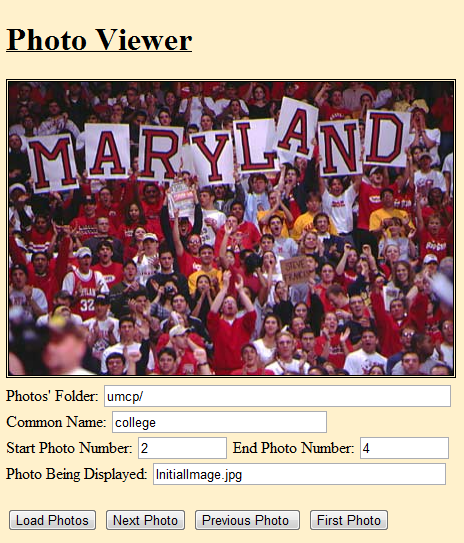
This project has two parts. First, you will implement a photo viewer that allows you to look at photos available in a folder. Photos will be shown in sequential order (based on the photo's number). A video illustrating the functionality of the application can be found at Application Video section. For you the second part you will provide a presentation about a research topic using the photo viewer you designed.
Grading
- (85 pts) Photo Viewer
- (10 pts) Form
- (15 pts) Function Implementations
- (11 pts) loadPhotos function
- (4 pts) createArray function
- (50 pts) Sequential Slide Show Functionality
- (20 pts) Moving from first photo to last one using "Next Photo"button (clicking on button several times)
- (20 pts) Moving from last photo to first one using "Previous Photo" button (clicking on button several times)
- (4 pts) Moving from first photo to last one when using "Previous Photo" button (single click on button)
- (4 pts) Moving from last photo to first one when using "Next Photo" button (single click on button)
- (2 pts) Providing an invalid range generates alert message
- (5 pts) Good Variable Names
- (5 pts) Good Indentation
- (15 pts) Research Topic Presentation
Notice that you don't have to submit a fully functional application in order to receive credit for this project. We will look at each one of the above items individually.
Specifications
Before you start implementing the web page, download the following zip file p3.zip. This file has a folder named p3 which contains files you will need for the project. You need to write your program in a file named PhotoViewer.html.
Global Variables
In this project you will define and use two global variables (variables defined outside of any function). We need these global variables in order to keep track of the array of photos being displayed. These are the only global variables you can have in your project. Remember that a global variable can be accessed by any function. This is how functions will be able to share information about the photos being displayed. Define the global variables immediately after the <script> tag.
- photosArrayGlobal- Represents array of photos being displayed
- photoIndexGlobal - Represents index (in photosArrayGlobal array) of the photo currently being displayed
Functions
Next we are providing a description of functions you should have in your implementation. Only three functions are required: main, createArray, and loadPhotos. We are presenting the functions in the order we understand they should be implemented. Feel free to add any functions you understand are necessary or to ignore the non-required ones. We strongly recommend that you test each function individually.
- main - This function will associate buttons on the form with functions in your code. This function needs to be called via the onload event handler in the <body> tag
- displayPhoto(photo) - This function will update the photo being displayed with the specified photo parameter. For example, calling displayPhoto("umcp/college3.jpg") will display the umcp/college3.jpg photo
- validNumbers(startNumber, endNumber) - This function will return true if startNumber is less than or equal to endNumber, and false otherwise
- createArray(startNumber, endNumber) - This function will create and return an array with a size that corresponds to the parameter values provided. For example, calling createArray(3, 7) returns an array with 5 elements. The array will have no values assigned to it
- loadPhotos() - This function will be called
when the "Load Photos" button is selected. The function will
read the folder's name,common's name, start photo number, and
end photo number and initialize the photosArrayGlobal
array with the names of photos that belong to the specified
number range. The first photo in the range will be displayed
and the "Photo Being Displayed" text field will display
the full name of the photo
Each photo's name consists of the folder's name, followed by the common's name, the photo's number and the ".jpg" extension. You can assume only .jpg files will be provided. Notice you don't need to add "/" (it is assumed the folder name will provide it.) After reading the start and end photo numbers, the function must check that the end number is larger than or equal to the start number. If that is not the case, the message "Invalid Numbers" must be displayed via the alert function, and no further processing will take place. To create the array you must use the createArray function described above. To verify the validity of the numbers provided, you must use the validNumbers function described above. Make sure you initialize the photoIndexGlobal to 0 (first photo in the array) - firstPhoto - This function will be called when the "First Photo" button is selected. It will display the first photo in the array. It is assumed that the loadPhotos function has already being called. The "Photo Being Displayed" text field needs to be updated accordingly
- next - This function will be called when the "Next Photo" button is selected. It will display the next photo in the array. If the last photo is being displayed, then the first one should be displayed. It is assumed that the loadPhotos function has already being called. The "Photo Being Displayed" text field needs to be updated accordingly
- previous - This function will be called when the "Previous Photo" button is selected. It will display the previous photo in the array. If the first photo is being displayed, then the last one should be displayed. It is assumed that the loadPhotos function has already being called. The "Photo Being Displayed" text field needs to be updated accordingly
- Feel free to add any functions you may need
CSS
There will be no css file for this project. Any style information will be provided in the html file (in the head section in between <style></style> tags). The background color for the page is #FFF1CC. The additional style element you must add is an underline under the Viewer heading and a border (double) around the img element.
Photo Viewer Requirements
- Only pictures in the specified number range should be used for a viewing session. That means you should not create an array that includes all the pictures present in the specified folder
- Your project must work with folders of pictures different from the one (i.e., umcp) we have provided. Notice we will use different folder and file names (and numbers)
- The next photo should be displayed when we click (single click) on the currently displayed photo (equivalent to what takes place when selecting the "Next Photo" button)
-
The following default values will be used with when the program
page is initially loaded:
- "Photos' Folder" will have umcp/
- "Common Name" will have college
- "Start Photo Number" will have 2
- "End Photo Number" will have 4
- "Photo Being Displayed" text field will have the value "InitialImage.jpg"
- Your html file must be implemented using HTML5 and must validate according to the http://validator.w3.org/#validate-by-upload validator
- You may not use any authoring tool which generates HTML/JavaScript code for you
- You must implement this project by yourself
- Do not post your project in a web site (people will see your code)
- Make sure you run your code using Chrome (that is the environment we will use to grade your project)
- Students that don't use arrays to implement the project will lose 50 points (Sequential Slide Show Functionality above)
- Students using additional global variables will lose 50 points (Sequential Slide Show Functionality above)
- You do not need to provide any pseudocode
- You must use good variable names and good indentation
Research Topic Presentation
You will research how computing and increasingly interconnected information sources have changed the set of problem solving and research skills needed by society during the last decade. The results of your research work should be presented using a set of photos/slides that can be shown through the photo viewer you designed for this project. Put your presentation in a folder named research and named all the photos/slides with the names research1.jpg, research2.jpg, etc. Regarding the presentation:
- You need to do your research using the technologies discussed in class
- You need to validate the data found on the web using the techniques/tools described in class
- Your presentation must include references (any reference style is fine)
- You can create your presentation in powerpoint and then take snapshots of the slides. Information about creating snapshots can be found at creating snapshots
Application Video
A video showing the functionality of your system can be found at video. A snapshot of the web site's main page is provided below.