To Launch Eclipse on Solaris
Machines of Room 1442 (AVW Building)
NOTICE: If you want to use Eclipse on campus you must use room 1442 in the AVW
building or a lab with machines running Solaris. The following instructions
will not work for labs running linux (for example, eclipse will not work in
AVW 1120). You need a glue account to access the machines in this lab.
As a UMCP student you are entitled to such account for free. The following
site can provide more information regarding glue accounts:
http://www.helpdesk.umd.edu/topics/email/systems/glue/1302/
- Log onto the solaris machine (Don't use the account you obtain through grades.cs.umd.edu)
- Change to the folder where the eclipse script is located by executing the
following command:
cd
/users/nelsonp/pub
- Execute the following script:
eclipseLauncher
To launch Eclipse on Your PC
- Double-click the "eclipse.exe" file you installed
OR the shorcut you may have created.
After Launching Eclipse
- After being launched Eclipse will ask you to specify the workspace to
use. The workspace is a folder used by eclipse to keep all your
work. Specify an already existing folder or accept the default provided
by Eclipse. (If you are launching eclipse from a Solaris machine just
accept the default.) The following is an example of the message you will
see from eclipse regarding the workspace:
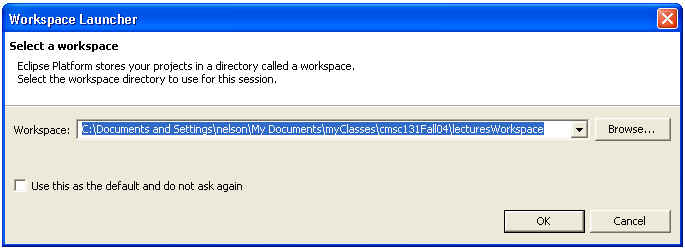
- Press ok to continue.
- After pressing ok you will see the following window:
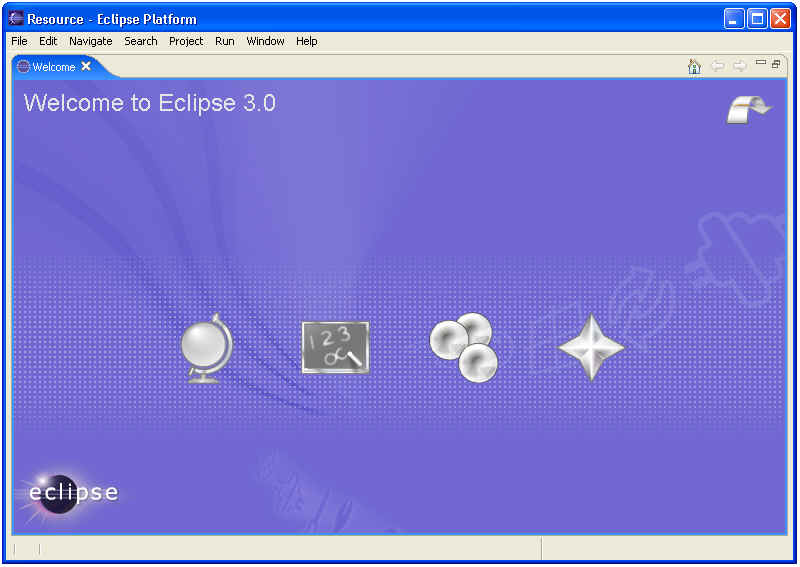
- After pressing the curved arrowed your will see the following window:
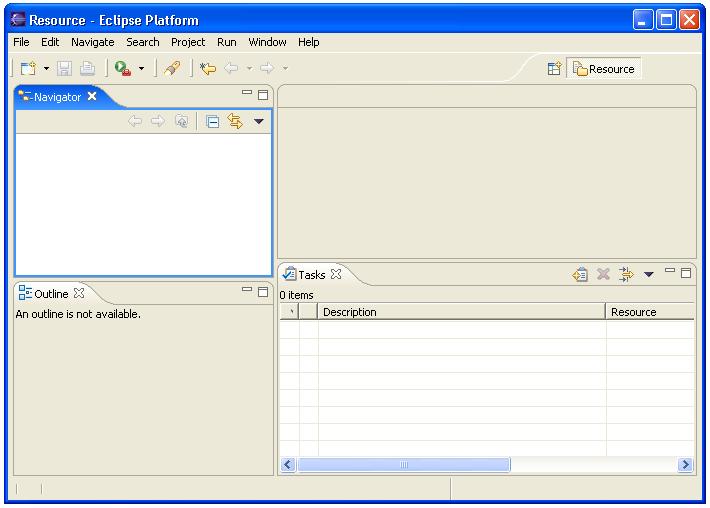
At this point you should change to the Dr. Java perspective as specified
in Dr Java Perspective.
Web Accessibility