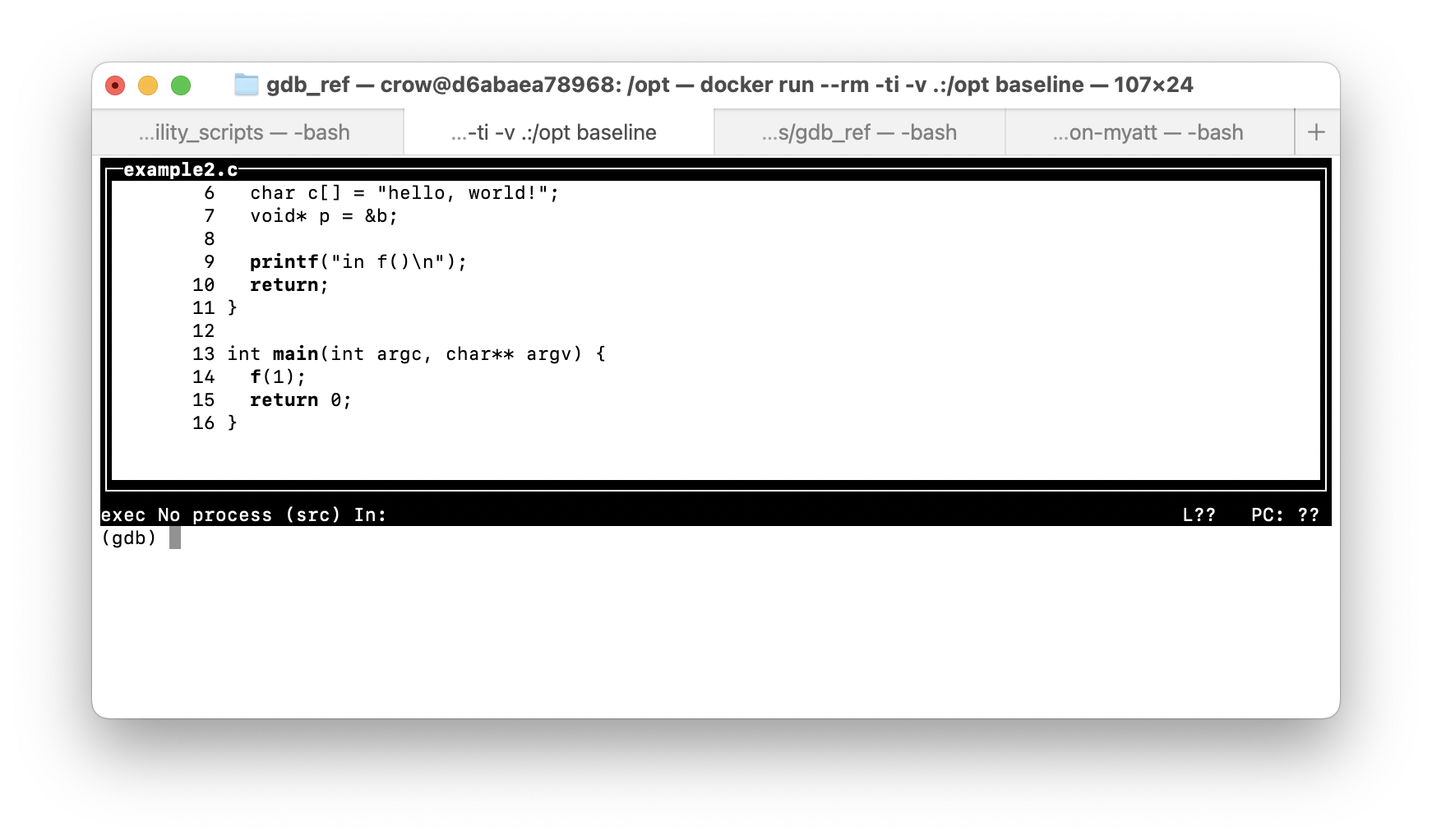
We do not cover it in detail, but you might find the text user
interface useful. Here we show a few screen captures of this in
action, with the command details provided in later chapters. You can
enable it with the command tui enable
(tui disable disables the text user interface), after which
you will see something like:
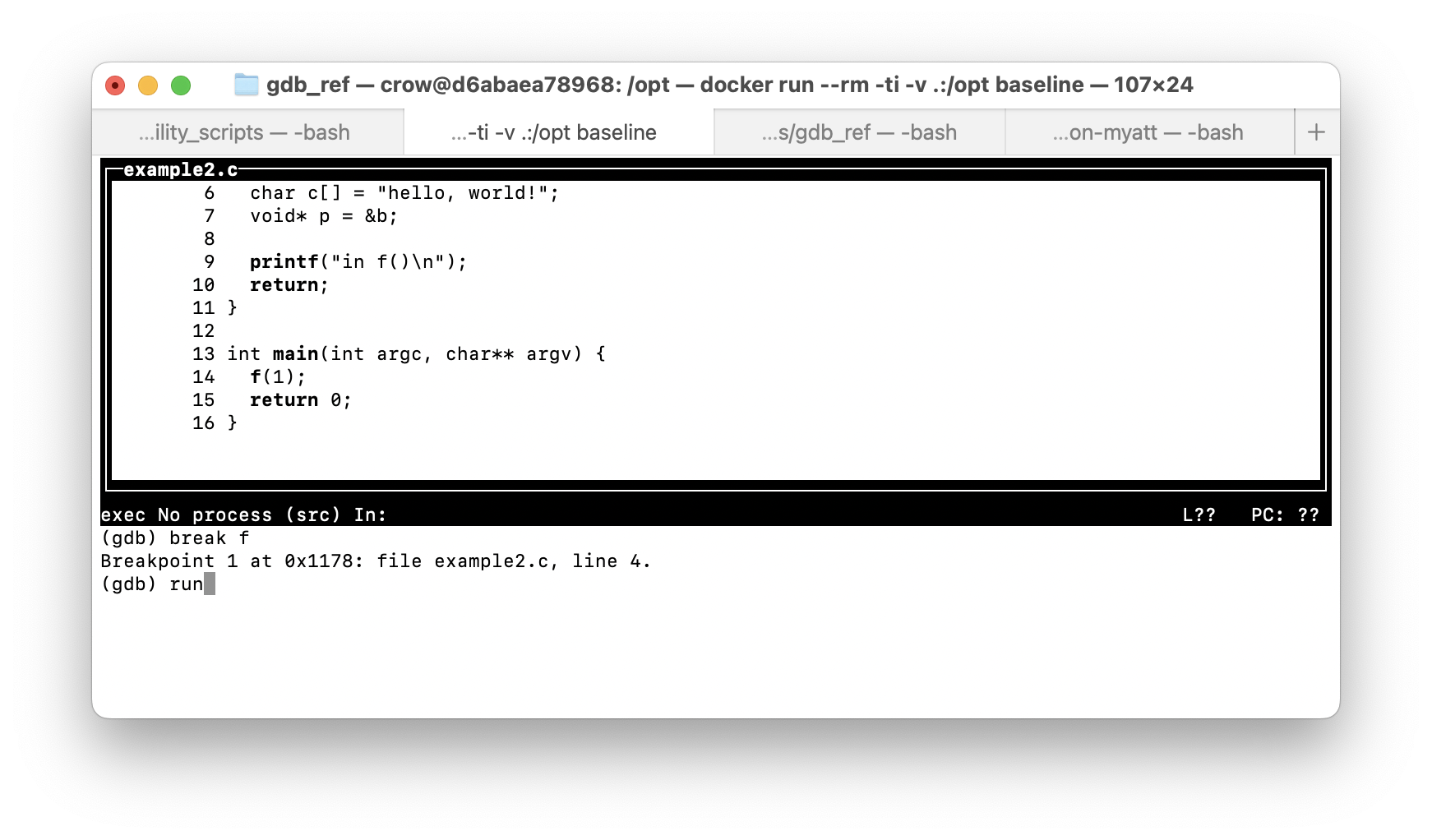
We can set a breakpoint and run the program as normal:
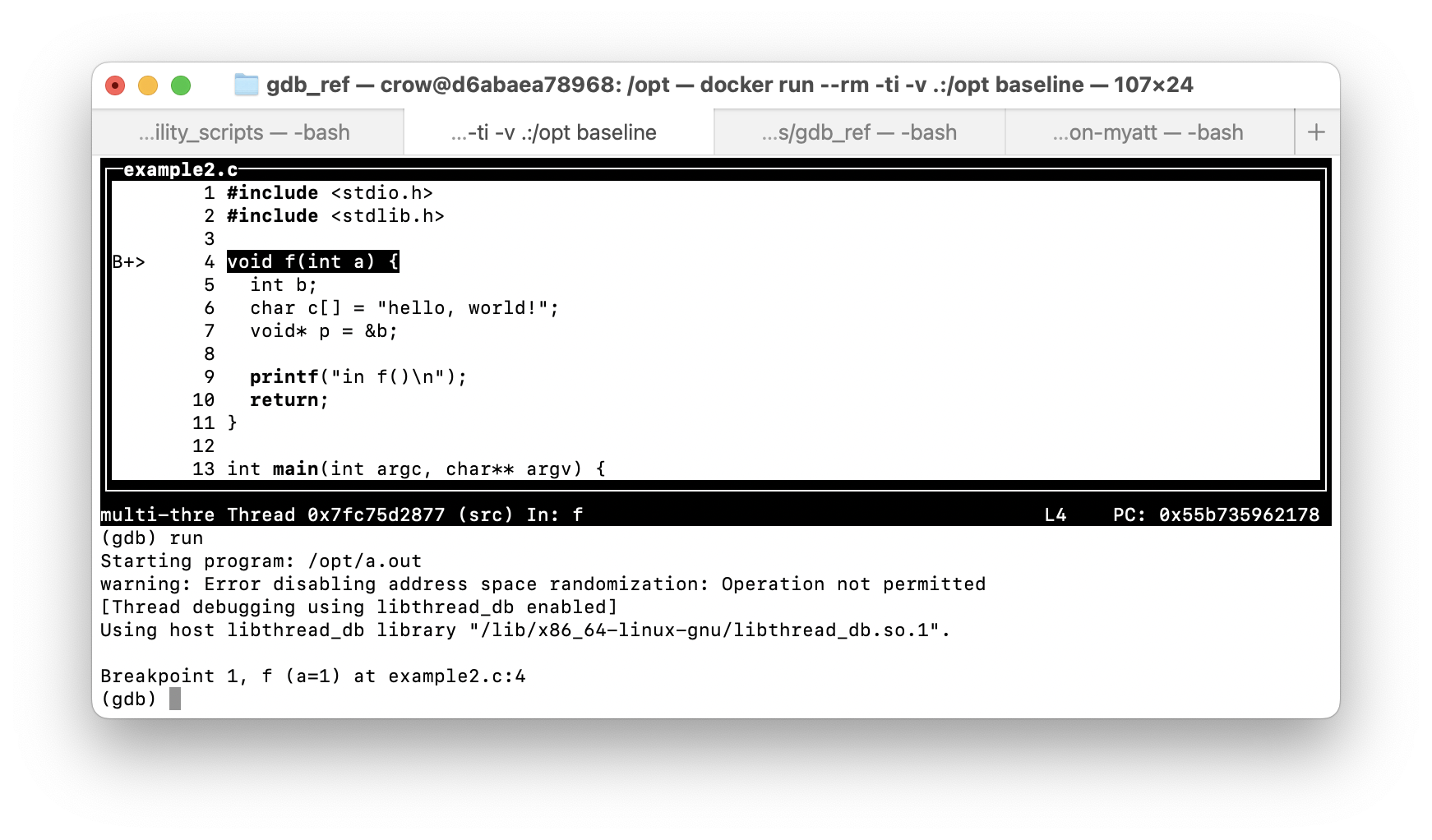
We now run the program, hitting the breakpoint at the start of the
function f:
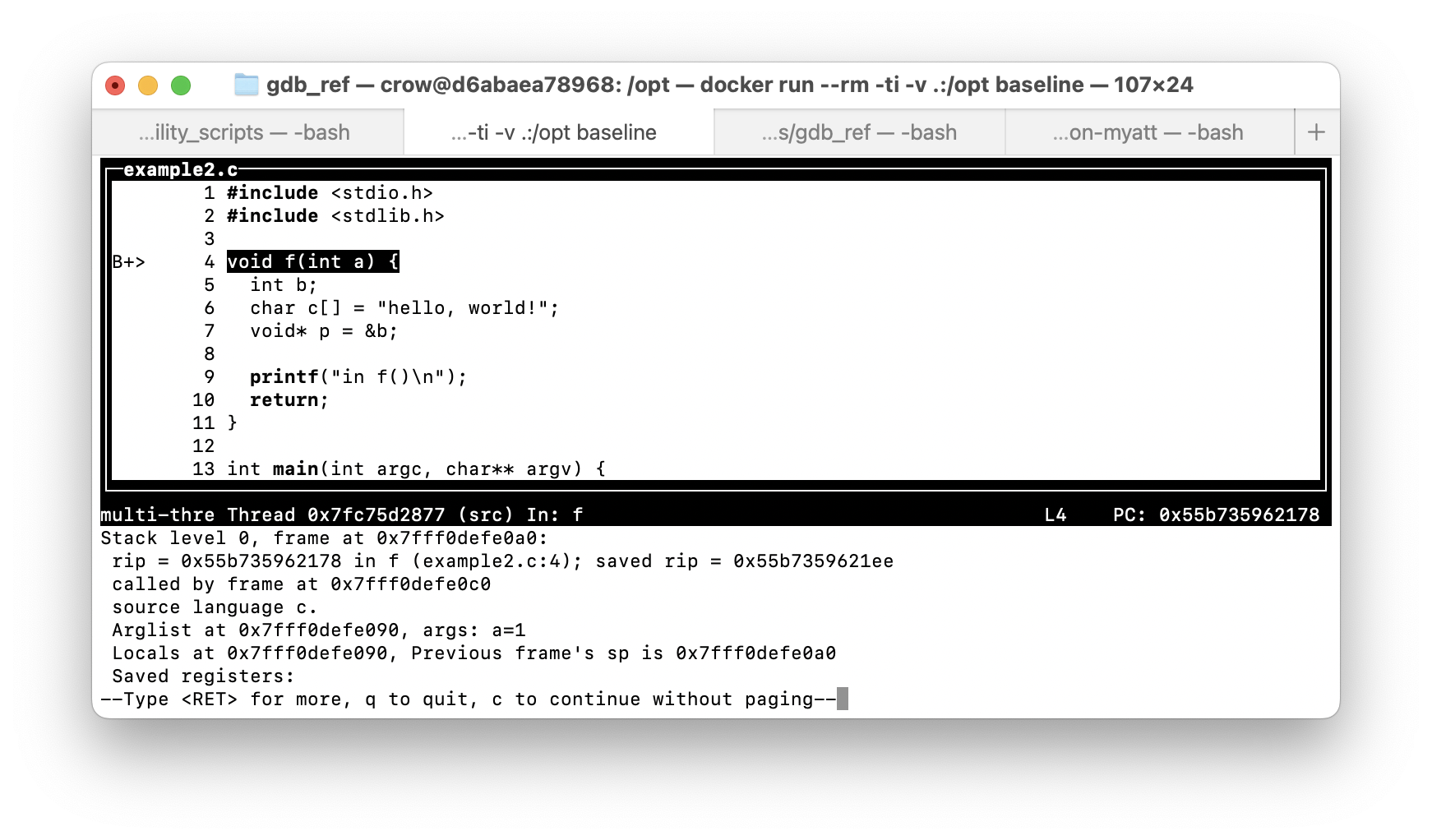
If we run info frame, we can confirm that the
information displayed matches what we would expect:
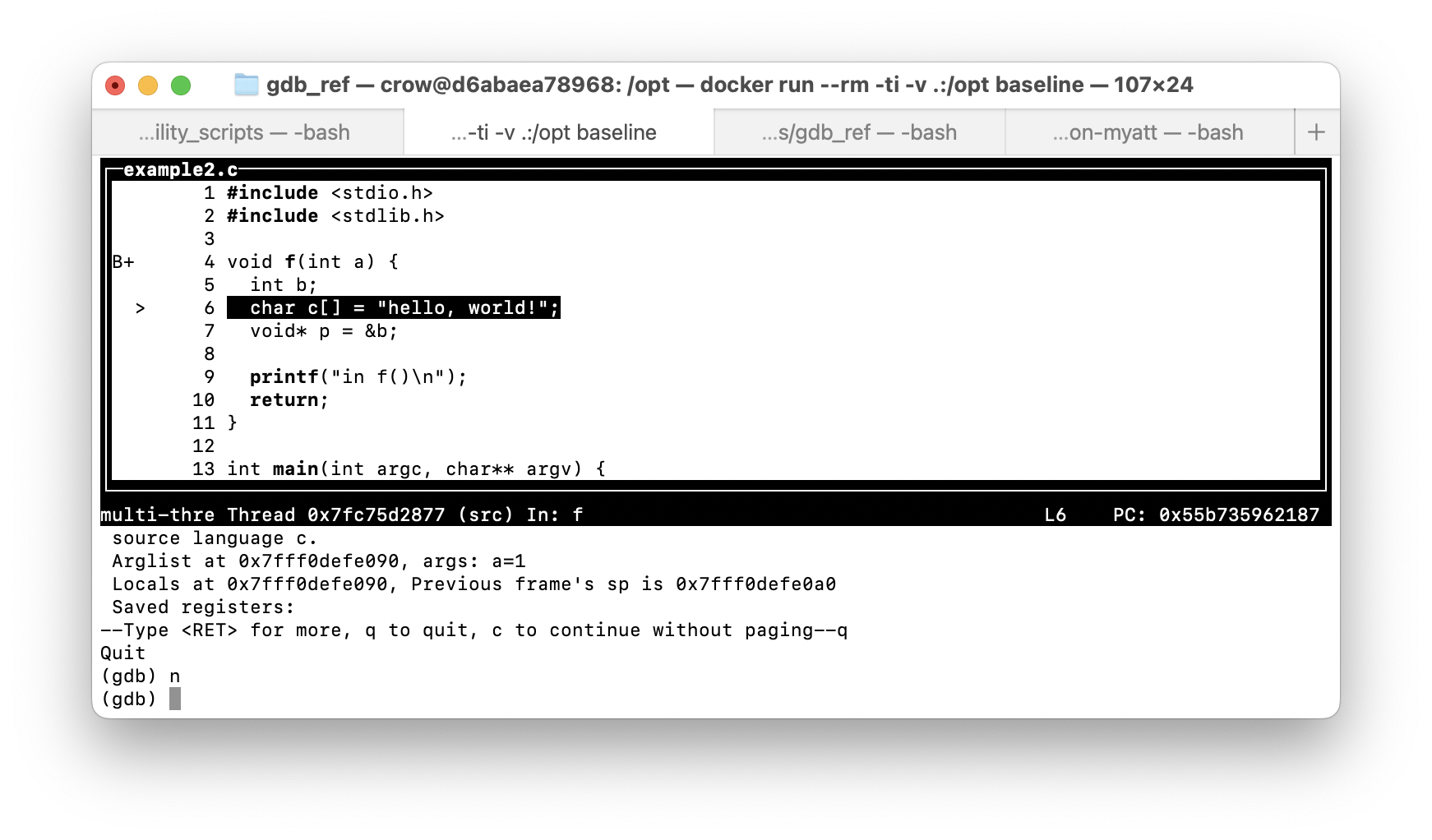
If we run next, we can execute the current line and see
the next one to be executed. The information displayed by the T U I is
updated automatically:
There are other views that you can enable in the text user interface, and much more that it can do.