|
Presentation of Design SCREEN
SHOTS
NEW TASK
New Task screen is used to enter a new and to edit an existing
task. This screen allows the user to enter specific information
about the task including:
- name of the task
- time of day it is to be completed
- the duration
- description
- the particular goal for that task
- who it is assigned to
- who it was prescribed by
Although only 3 fields are required (name, time, and duration)
the other field are useful for parents who are trying to remember
task that need to be completed along with how to complete them.
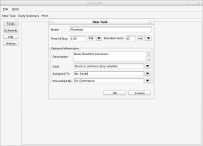
Figure 1: New Task Screen
TASKVIEW
The Taskview screen shot displays all the tasks for the day. This
screen allows users to view all the tasks in a list format. If the
user selects a task it is expanded and the name, description and
duration of the task are displayed.
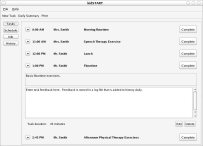
Figure 2: TaskView Screen
DAILY SUMMARY
The Daily Summary screen shows the user what tasks have been completed
along with what tasks are incomplete. Once the user selects a task,
the description of the task, duration, person that completed the
task, and time, are displayed.

Figure 3: Daily Summary Screen
TIMELINE/CALENDAR
The timeline screen offers the users several levels of zoom and
the option to view years, months, or days. If the user clicks on
a day on the timeline then a brief description of the task will
be displayed. If the user clicks the date on the calendar then a
more in depth description appears. This screen allows the user to
view past and future tasks and appointments at a click of the button.
Sometimes the user may need to look back to past appointments and
task, and this screen allows the user to complete this with ease.

Figure 4: Timeline/Calendar Screen
HELP SCREEN
The Help Screen gives the user help throughout the interface. The
help screens are there to help users to navigate throughout the
interface.
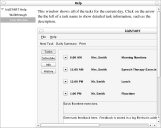
Figure 5: Help Screen
|


