The Doctor’s application development was relatively
simple. We needed a way to store the personal information of the user
as well as an interface to select the workout that each specific patient
would perform. So, for this portion of the product, we found only two
screens necessary, one for each of the needs mentioned.
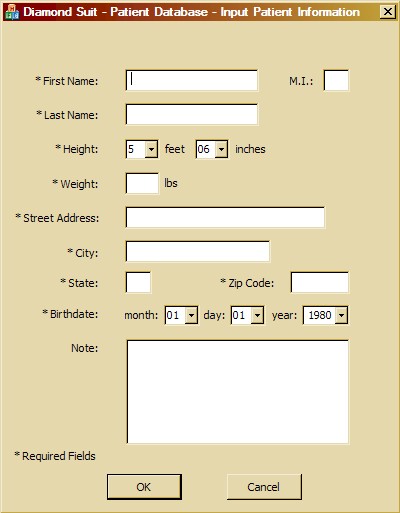
Screen 1 – Input Patient Information
Above is the first screen of the Doctor interface. Its purpose is to
input and store the patient’s information. There is error checking
to make sure valid values are filled in for each text box.
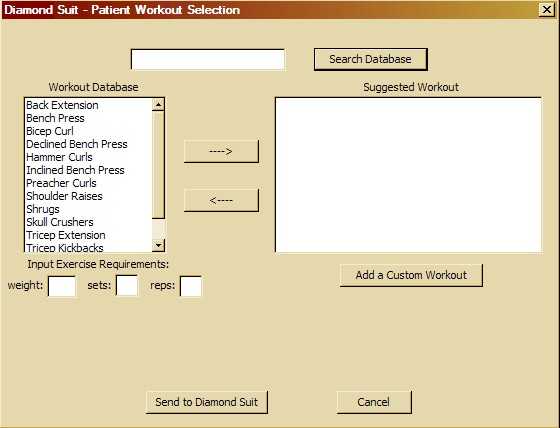
Screen 2 – Patient Workout Selection
The Workout Selection Screen is for the doctor to be able to select
the specific workout, weight, number of sets, and number of repetitions
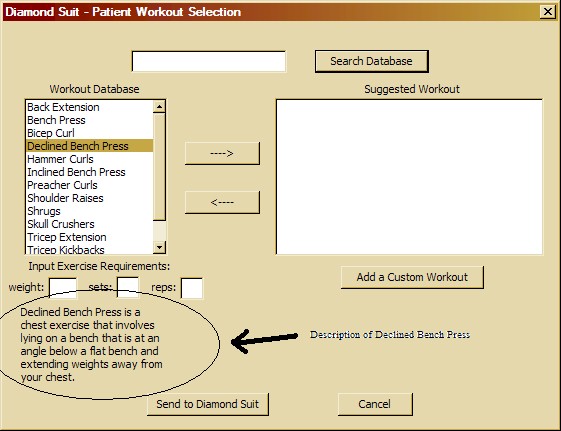
for the patient. After each exercise is selected, a description of the
workout is provided below it:
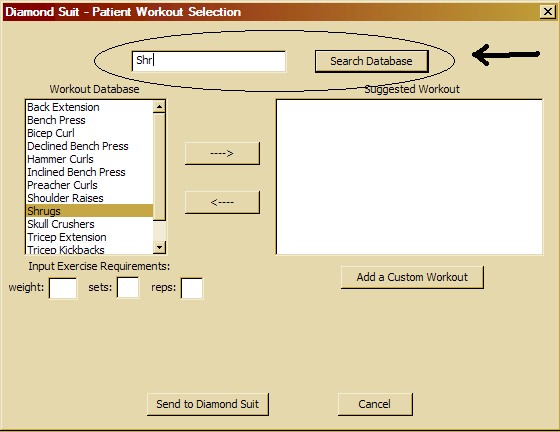
There is a search function that goes through the database as the user
types in each keystroke, going to the most current match. For example,
if a user were to input "Shr" in the search function, the search would
jump to "Shoulder Raises" on the pressing of the 'S', stay on that for
the 'h' since it still matches, then finally ends up on "Shrugs" when
the 'r' is pressed:
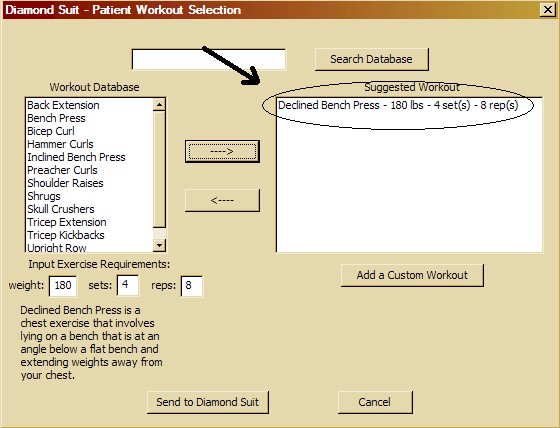
There are also two arrows, one that points left, and one that points
right. The arrow that points to the right is used to add the selected
workout in the database with its specific weight, sets, and repetitions.
Notice that the workout that was added, Declined Press, was removed
from the database window and now exists in the suggested workout:
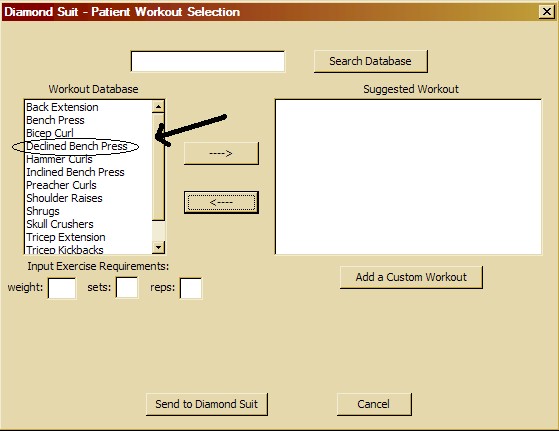
The other arrow is one that points left which removes a selected exercise
from the suggested workout and places it back into the database. In
this example, the screen will look similar to the beginning Workout
Selection Screen. Notice now that the Declined Bench Press is now listed
back in the database now that it is no longer part of the workout the
doctor had been building: