High Fidelity Prototype: Diamond Suit Interface
Using low fidelity prototype as a guide, we developed
the high fidelity prototype in Visual Basic .NET removing all the errors
from the previous version. After making the first interface, it was
clear by thorough testing that some changes were required to make the
Diamond Suit more easy to use.
Authentication Screen

Following with the guidelines of the low fidelity prototype not many
changes were made for the Authentication screen. The only changes however
was that our group decided to take away the * and # buttons and that
we added an extra button on both the top and bottom of the interface.
This was done because we wanted to add a help and home button that would
always be available for the user. We also decided that four buttons
that are on top and bottom of the interface to be very small and sleek.
This is because in reality this prototype is a representation of a hardware
device and as a group we decided that those eight buttons should be
very thin long and easy to click.
Home Screen

Besides the addition of the Home and Help buttons, there were no major
changes from the low fidelity prototype.
Current Health Condition Screen
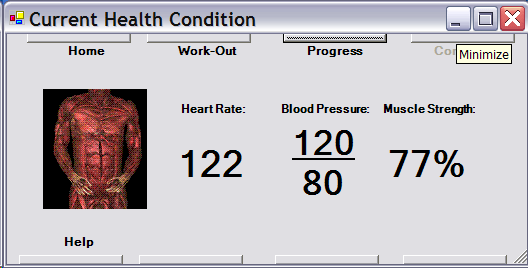
The Current Health Condition Screen had no real changes from the low
fidelity prototype.
Workout Screen
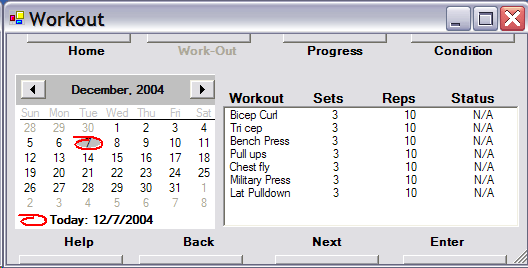
The Workout Screen has minor changes from the low fidelity prototype.
First the information about the current work out are now all aligned
instead of scattered on different parts of the screen. We also added
a Last Work-Out button which will give you the information on the previous
workout and a Next Work-Out button which would go to the next work out
and give you the information, if there is any, of the next workout.
Immediate Workout Progress Screen

The Immediate Workout Progress Screen had no real changes from the low
fidelity prototype.
Workout Progress Screen
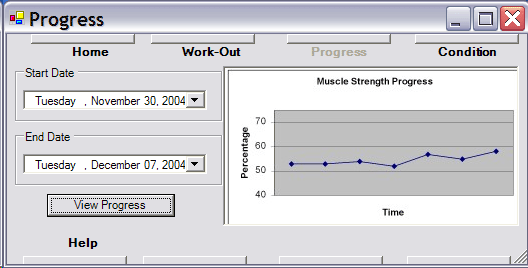
The Workout Progress Screen changed quite a bit from the low fidelity
prototype. One of the major changes was the date selection for the Start
Date and the End Date. For the high fidelity prototype when you select
a date for both the Start Date and End Date, a calendar pops up and
you can choose the date that you want to select. Then we have a View
Progress Button that can be selected so that the information on the
subjects Workout Progress between those dates can be shown on the right.
Settings Screen
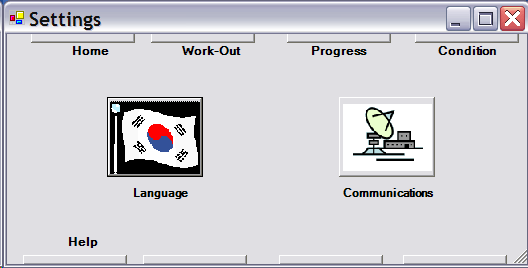
The Settings Screen stayed the same as the low fidelity prototype.
|


