During the low fidelity prototype phase, the team was
divided into 2 groups and each group came up with a different low fidelity
prototype. Below are screen captures of one of the low-fidelity prototype.
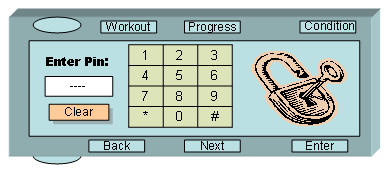
Authentication Screen
This is the first screen a user sees when he powers on the device. The
device is pin protected to secure the personal information and data
of the user. The user has to enter a correct unique four digit pin in
order to login to the system. Any combination of four digits can be
selected from this screen. Pin number is entered by selecting each digit
by a stylus. If a user enters a wrong pin number, there is a “clear”
button, which allows the user to retype his pin number.
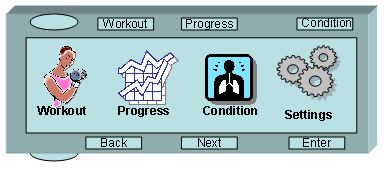
Home Screen
Home screen is the first screen after the log in screen. Once on the
Home screen, there are different icons to choose from. The first icon
is of “Workout”. Workout gives the details what a user has
to do on that day. Which exercise the user has to go through to complete
the workout routine.
Second icon is “Progress”. Progress stores the information
of the past workouts. How many and which workouts did a user perform
on a certain day. All the previous information about the user and his
current condition on a certain day can be retrieved from “Progress”.
“Condition”, while working out gives the details of the
current heart rate and muscle strength of the user. The user can access
his condition at any point during his exercise and stop if he over does
himself.
“Settings”, give user the power of changing the settings
of the device according to his comfort. If a user is left handed he
can change that through selecting “Settings”. The device
is set for right handed by default. In the “Settings”, the
language of the device can also be changed to other major languages.
By default it is set to English.
All of these icons can be selected by scrolling up and down on the
scroll pad. The scroll pad is on the both sides of the device; for left
and right handed. There are three buttons also on the side of the device
to select an icon, move in or out of a screen. Once the icon is highlighted,
it can be selected by pressing “Enter”. To move between
the screens can be done by pressing “Next” and “Back”.
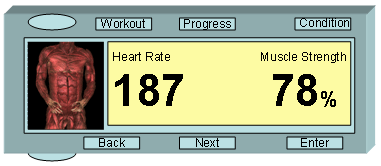
Current Health Condition Screen
This screen displays the current heart rate and current muscle strength
of the user. On the left side of the screen it displays a human body
figure, male or female, depending on who is the user, to signify that
which muscle the user is exercising.
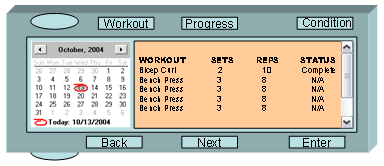
Workout Screen
The workout screen’s purpose is to keep track of the type of workout
the user is going to perform, number of sets and reps of the workout,
and if the user has completed that exercise. The workout screen itself
is split up into to screens. The left side of the screen contains a
calendar where the user can select the date of a workout that he or
she wants to look up. The right side of the screen contains the information
of the workout on that day, such as the Exercise name, the number of
sets, reps and status, which is if the user has completed that particular
exercise.
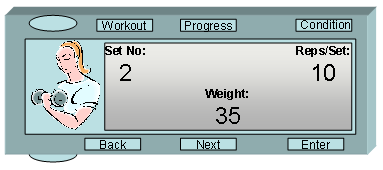
Immediate Workout Progress Screen
The immediate workout progress screen’s purpose is an immediate
view of the user’s progress as they are executing the exercise.
This is helpful for the user because if the user was trying to max out
on the number of reps, the user does not need to keep track on what
number he or she is on, instead they can concentrate on the technique
of the rep. The screen itself has an icon representing that screen on
the left hand side, while on the right hand side is has the number of
sets on the upper left hand corner the number of reps per set on the
right hand corner and the current weight of the workout in the lower
middle.
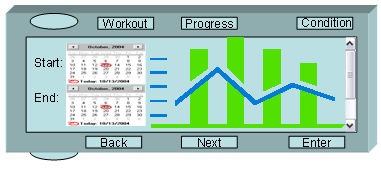
Workout Progress Screen
The workout progress screen’s purpose is to show graphically how
much the user improved/worsened in a certain span of time. The screen
itself is split up into two parts. On the left hand side, there are
two calendars, the start calendar and the end calendar. The user is
to choose a date on both calendars and on the right hand side there
will be a line graph that shows graphically how the user progressed
between the two chosen dates.
This is useful for the user so they can get a sense on how well their
rehabilitation workout is going over a long period of time. This will
give the user the necessary information that they will need to incase
they want to change up their workout due to the patterns that the line
graph will project.
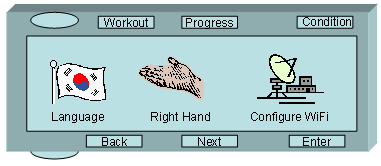
Settings Screen
The settings screen’s purpose is to give the user access to changing
the language of the interface, to toggle between left handed people
and right handed people, and wireless configuration. The language icon
will change the language of the interface to the user’s preference.
The left handed right handed toggle icon, will toggle the interface
so it is more suitable for left handed people or to right handed people.
Finally the wireless configuration is an icon to configure the wireless
network between the suit and the interface.